
Hey there, how can we help?
Find the answers to your questions.
If you cannot find answer then contact us.
SLAM Viewer for Navvis & Trimble | Undet Browser
Extracting Data from your SLAM Viewer
The Undet Browser is a specialized point cloud viewer designed to handle the unique challenges of a SLAM to CAD workflow. By connecting your Navvis VLX or Trimble MX60 data directly to your CAD model space, you can navigate massive mobile mapping datasets through high-resolution, 360° panoramic images.
Running Undet Browser for SLAM Projects
After indexing your mobile mapping data, launch the Undet Browser from the Windows Start Menu.
Select Data Source: Choose Local UNDET project and select your *.ipcp file.

SLAM Trajectory Loading: The browser will automatically load the trajectory and camera positions defined during the indexing of your Navvis or Trimble data.
Top Toolbar: Interactive SLAM Viewer Tools

NOTE: Several functions can be enabled at the same time.
 |
Moves between action history (Back / Forward). |
 |
[Log out] – Log out to select a new project. |
 |
[Refresh] – Refresh browser view. |
 |
[Draw Points] – Enables / disables function to place point in the CAD model by clicking in Panoramic Scan View. |
 |
[Add Annotations] – Enables / disables function to add an annotation in Panoramic Scan View (only Webshare Cloud users). |
 |
[Add Herfs] – Enables / disables function to add a hyperlink to Panoramic Scan View screenshot when selecting 3D point in CAD model. |
 |
[Translate View Section] – Enables / disables function to update Undet Clipping Box location by clicking in panoramic scan view. |
 |
[Change Elevation] – Enables / disables function to assign Z value to draw new CAD object (line, polyline). |
 |
[Script] – Enables / disables to use written script. |
 |
[Settings]- Script settings dialogue to set the script you want to use. |
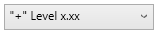 |
[Scripting list] – Compilation of scripts for annotations. |
 |
[Z Offset] – Allows you to adjust the annotations you’ve input by a specific Z value. |
 |
[Always on top] – Enables / disables “Always on top” windows mode. |
 |
[About] – Undet Browser version/update information. |
 |
[Help] – Link to Undet Browser user knowledge base. |
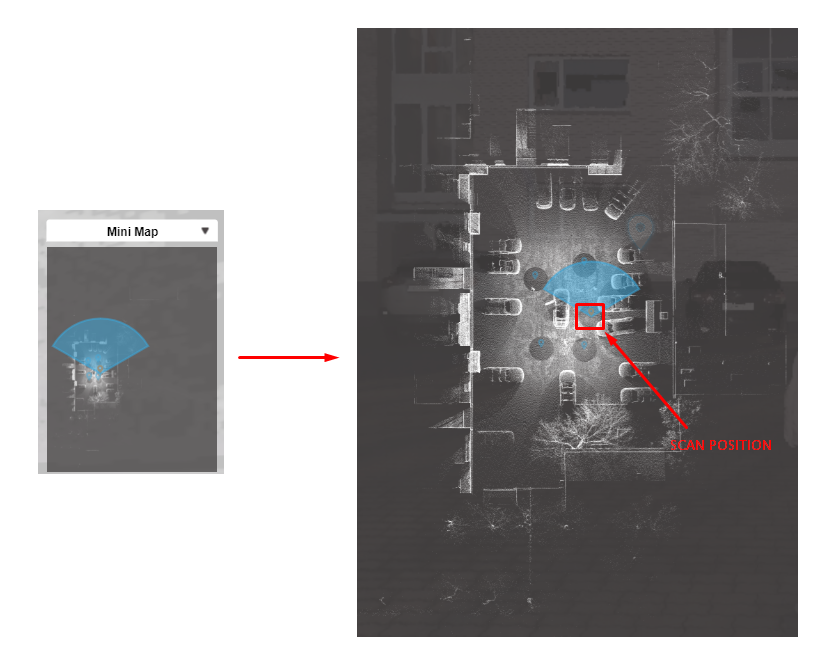
Mini Map – a feature that allows you to view the scan locations of the entire project and current scan view direction. Click on it to enlarge.
Undet Browser Settings

 |
Enabling point snapping and entering a specific mm value will enable you to select where to insert the point (nearest, minimum, or maximum). |  |
 |
To learn about Amazon S3 integration with Undet Browser please visit: | AWS S3 account creation and project management with undet AWS account setup guide |
 |
Add, remove and move beetween scripts |
All instructions on how to use pre-built scripts and create custom scripts in Undet Browser are available in this comprehensive video tutorial. This tutorials provides step-by-step visual guidance, making it easier to understand and leverage the powerful scripting capabilities of Undet Browser.
Use Undet Browser scripts to automate annotation workflow in ARES Commander
Use Undet Browser scripts to automate annotation workflow in AutoCAD
Side Toolbar: MMS Data Extraction & Post-Processing
 |
1 Drop Down – Select existing group. 2 Drop Down – Open selected scan position by the name. INT: 50 RGB: 50 – Coloring range of Intensity and RGB colors.  [Get Coordinates] – Get XYZ coordinates of selected point. [Get Coordinates] – Get XYZ coordinates of selected point.  [Get Distance Z]- Measure height between to points (Z value) [Get Distance Z]- Measure height between to points (Z value)  [Get Distance XY]- Measure 2D distance between two points (XY value) [Get Distance XY]- Measure 2D distance between two points (XY value)  [Get Distance XYZ] – Measure 3D distance between two points (XYZ value) [Get Distance XYZ] – Measure 3D distance between two points (XYZ value)  [Toggle Background] – Change background color. [Toggle Background] – Change background color.  [Clipboard] – Copy measured value to clipboard. [Clipboard] – Copy measured value to clipboard. |
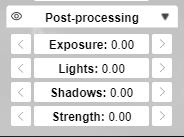 |
Postprocessing tools (only Undet Project users): Exposure – Increase / decrease point cloud brightness. Lights – Increase / decrease point cloud lights. Shadows – Increase / decrease point cloud shadows. Strength – Increase / decrease point cloud sharpness. To reset settings – double click the selected post-processing tool field |
Right Mouse Click Tools
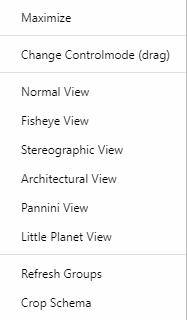 |
There are some functions accessible via the right mouse click (only Undet Project users). Maximize/Restore – To maximize/restore the Undet Browser window. Change Controlmode – Cursor control modes (follow), (moveto), (drag). Views – Normal, FishEye, Stereographic, Architectural, Pannini, Little Planet views. Refresh Groups – Update Undet Project groups if there were group changes in your current open project. Example (renamed group, moved group to another group, etc.) Crop Schema – Crop only required place of Minimap for better performance and easier workflow. |
Undet Browser Bottom Toolbar

How to use Undet Browser:
- Click here to see general features
- Click here to see Undet Browser features for ARES Commander users.
-
Click here to see Undet Browser features for AutoCAD users.
-
Click here to see Undet Browser features for Revit users.
-
Click here to see Undet Browser features for SketchUp users:
Updated 2026-04-02